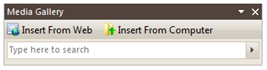
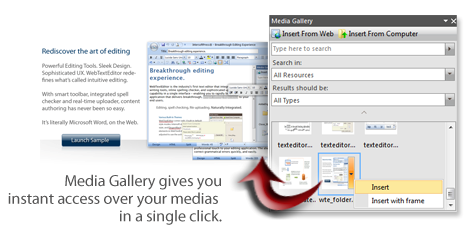
Media Gallery pane is used to search for media and insert them into WebTextEditor. To open Media Gallery pane, user can click on Media Gallery command in main toolbar or choose Media Gallery from Task Pane menu.
Media will be searched based on the search criteria inputted by user:
- Search text.
When search text is specified, WebTextEditor will search for media that contain the specified text. When search text is not specified, the search will retrieve all media.
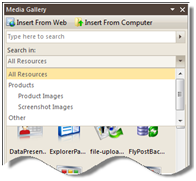
- Media Resources.
Several resources can be specified in WebTextEditor in hierarchical mode. Media resource refers to an external storage where media are stored. User can determine whether the search action should be performed on all resources or a single resource.
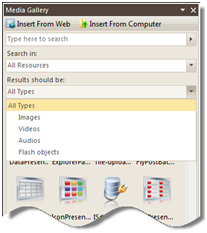
- Result type.
The result of the search could vary from images, videos, audios, and Flash objects. User can determine whether the search action should returns all type of results or limited to a certain kind of type.
To insert the media to editor, user can simply double click on the media or use the media's context menu. Using media context menu, user can choose whether or not the inserted media be placed in a frame. When frame is used, caption can be added to the image.
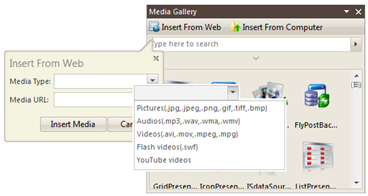
If the media is stored in the web, user can use Insert from Web callout to insert the media to editor. Various types of media: pictures, audios, videos, Flash videos, and YouTube videos can be inserted to editor.
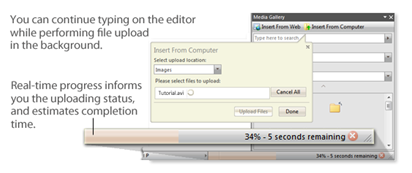
In most scenarios, the media is stored in local machine. Users have to upload the file to server before they can make use of it in the editor. WebTextEditor features deep integration with WebFileUploader enabling users to perform files uploading easily and intuitively. Simply click Insert from Computer command to upload the file and insert it in editor.